
Most people start with a few loose words: breath, air, very simple, flow. That's a fine starting point for a person, but image models do better with one clear description. The enhancer, next to the prompt box in the generator, uses an OpenAI GPT model to bridge that gap.
What it does now
Type your idea and press Enhance. The text in the prompt box is replaced with one rewritten description (up to 1,000 characters), which you can edit before generating.
The rewrite is instructed to:
- keep your subject, any colors you named, any lettering you asked for, and your intent
- pick one clear focal point
- simplify details so the icon still reads at small sizes
It's also told what not to do: invent an app name, add extra objects, force symmetry, or choose an art style or background. Style and background come from the settings you pick in the generator, so the enhancer stays out of that.
If the enhancer fails for any reason, your original text stays in the box unchanged.
What we learned from the first version
When we launched the enhancer, it returned three alternative prompts. For breath, air, very simple, flow it suggested:
1. A minimalistic representation of a human silhouette breathing out air,
   represented by curved lines, on a white background.
2. A simplified 2D design of a blue wind symbol as an indication of
   flowing air on a clear background.
3. An abstract icon consisting of swirls and waves in shades of blue to
   represent air flow, on a white, square backdrop.
These are four of the images those prompts produced:


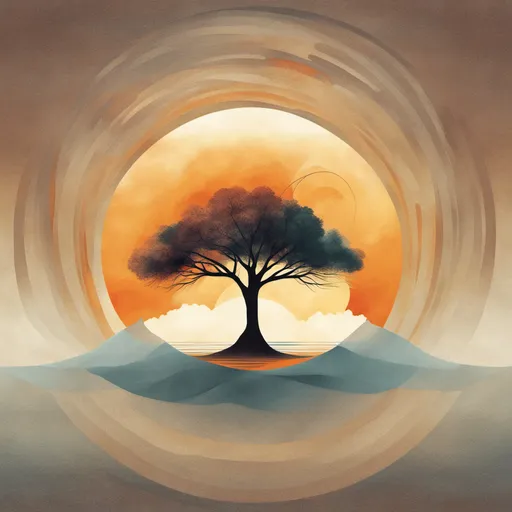
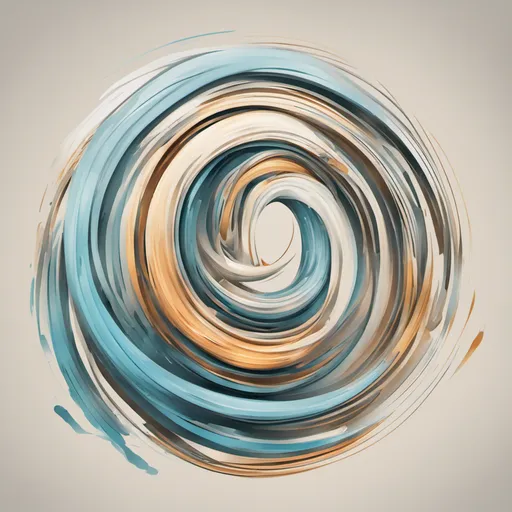
They're attractive, but they show the problems we fixed later:
- Extra objects. Nobody asked for water, hills or a tree. The model filled empty space with scenery.
- Scenes instead of symbols. The first three are small paintings. At home-screen size they lose most of their detail.
- Style decided for you. "Minimalistic", "2D" and "white background" were baked into the prompts, even when the user had picked a different style.
The current enhancer avoids all three: one description, no added objects, and style left to your settings.
When to use it
- Use it when you have a feeling or a few keywords and aren't sure how to describe the picture.
- Skip it when you already know exactly what you want. A clear prompt of your own is just as good, and you can go straight to generating.
For more on writing prompts yourself, see how to write AI prompts for app icons.